Best Practices • 6 min read • Updated September 29, 2026
Instagram Ingress Timeout: What It Means and How to Fix It
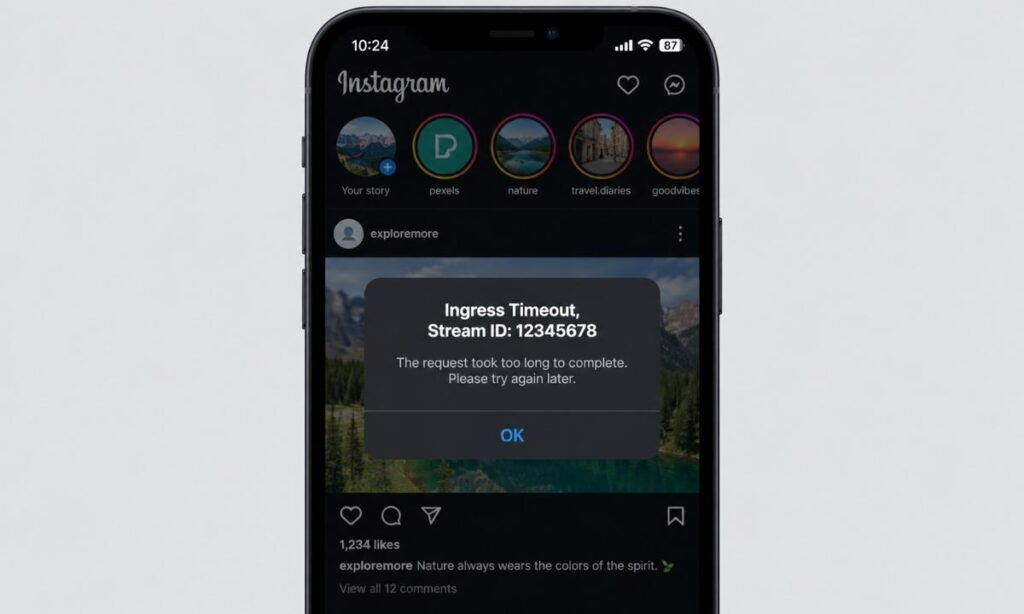
An “Ingress Timeout” or “Ingress Timeout Stream ID” error on Instagram looks a lot scarier than it actually is. It’s not a sign your account is broken, and in almost every case it’s fixable in a couple of minutes. Here’s what the message actually means and every fix worth trying, in the order most likely to work first.
Quick answer: Ingress Timeout means your device couldn’t connect to Instagram’s servers within the expected time — almost always a connectivity issue, not an account problem. Try reloading first; if that doesn’t work, check your internet connection, then try disabling any VPN or security software, and switch networks or devices to narrow down where the problem sits.
Table of Contents
- What Does “Ingress Timeout” Actually Mean?
- What Causes It?
- How to Fix It: Step by Step
- Still Happening? Check Your Account Status
- Is Instagram Down Right Now?
- FAQs
What Does “Ingress Timeout” Actually Mean?
Breaking the term down makes it much less intimidating:
- Ingress is the technical name for the set of rules that manage how outside traffic (you, opening the app) connects to Instagram’s servers. Think of it as a checkpoint your connection has to pass through.
- Timeout means your device waited for a response at that checkpoint and didn’t get one in time, so the connection attempt was dropped rather than left hanging indefinitely.
- Stream ID refers to the unique identifier Instagram assigns to whatever data is being sent — loading your feed, posting, or watching a Reel. You don’t need to do anything with this part; it’s just there to identify which specific request failed.
Put together, the message is really just Instagram’s way of saying: “your connection request didn’t get through in time.” It’s a network-level hiccup, not a message from Instagram about your account specifically.
[IMAGE] A mockup or example screenshot of the Instagram app showing the “Ingress Timeout, Stream ID: [number]” error message as it typically appears to users. Alt text: “Instagram Ingress Timeout Stream ID error message example”
What Causes It?
In the large majority of cases, this comes down to one of a handful of things standing between your device and Instagram’s servers:
- A weak, unstable, or slow internet connection
- A firewall or security/antivirus software blocking or slowing the connection
- A VPN adding an extra hop that’s timing out
- Network congestion on Instagram’s end during high-traffic periods
- Less commonly, a device-specific or app-specific glitch
How to Fix It: Step by Step
Work through these roughly in order — each one takes a minute or two, and most people find the fix in the first three steps. Tech With Tech’s breakdown of the error covers each of these in more depth if you want to dig further into any single step.
- Try again. A large share of these timeouts are one-off and resolve themselves on a second attempt. Close and reopen the app or refresh before doing anything else.
- Check your internet connection. Load a couple of websites or another app to confirm you actually have a working connection, and run a quick speed test if it’s still unclear. If your connection is slow or dropping, that’s very likely your answer.
- Temporarily disable your firewall or security software. These can interfere with the app’s connection more than expected, even when Instagram isn’t specifically blocked. If disabling it fixes things, whitelist Instagram in your security software rather than leaving it off permanently.
- Turn off your VPN, or switch servers. VPNs add an extra step to every connection, and that extra hop is a common source of timeouts. Try a different server first; if the issue continues, disable the VPN entirely to confirm it’s the cause.
- Switch networks. Move from Wi-Fi to mobile data (or vice versa) to see if a different network resolves it. If it does, the problem is with that specific network rather than your device or Instagram.
- Try a different device. If the error follows you across every network but disappears on another phone or a computer, the issue is specific to your original device rather than your connection or account.
If you’ve been through all six and it’s still happening on multiple devices and multiple networks, the issue is most likely on Instagram’s side rather than yours — see the outage check below.
Still Happening? Check Your Account Status
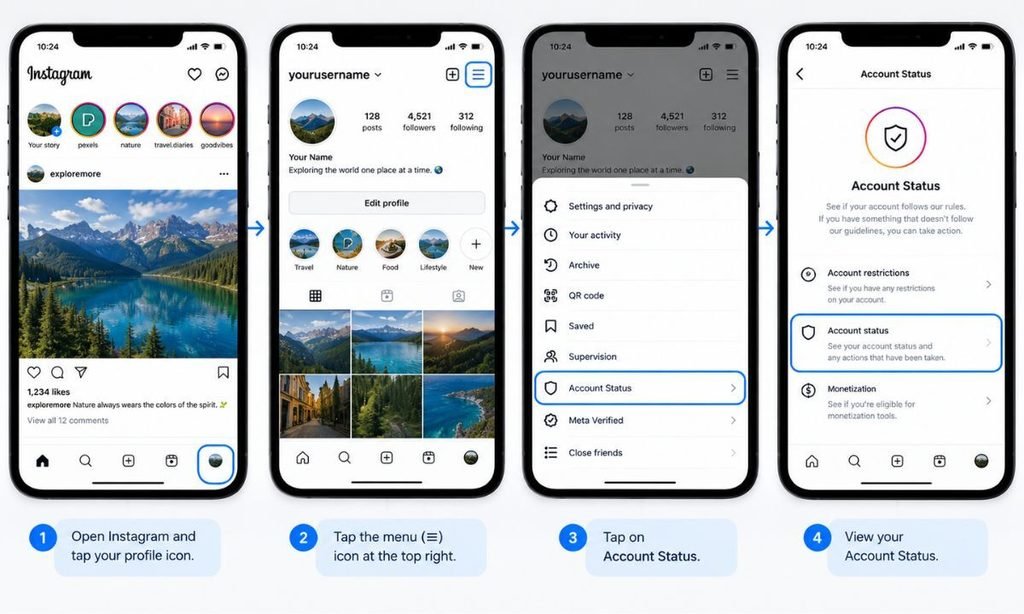
There’s one less-obvious cause worth knowing about: some users have reported seeing an Ingress Timeout-style error appear right after posting something that got flagged against Instagram’s community guidelines, instead of a clearer message explaining why. If the error is tied to one specific action (like posting a Story) rather than the app generally, it’s worth checking Settings > Account Status in the app — if anything’s been actioned, you’ll see it there, along with an option to request a review if you believe it was flagged incorrectly.
Is Instagram Down Right Now?
If the error is happening across every device, every network, and to people around you too, it’s worth confirming whether it’s a wider Instagram outage rather than anything on your end — a quick web search for “Instagram down” will usually turn up current reports if so. In that case, there’s genuinely nothing to fix on your side; it resolves once Instagram’s systems catch up.
FAQs
What does “Ingress Timeout” mean on Instagram?
It means your device’s connection request to Instagram’s servers didn’t get a response in time and was dropped. It’s a connectivity issue, not a sign that anything is wrong with your account.
What does “Stream ID” refer to in this error?
It’s just a unique identifier Instagram assigns to the specific request that failed — loading your feed, posting, and so on. It’s there for technical tracking purposes and isn’t something you need to act on directly.
How do I fix Ingress Timeout on Instagram?
Start by trying again, then check your internet connection, temporarily disable any firewall/security software, turn off or switch your VPN, try a different network, and finally try a different device if it persists.
Does Ingress Timeout mean my account was banned?
No, not typically — it’s almost always a connection issue. In rare cases, it’s been linked to content getting flagged, in which case checking Account Status in Instagram’s settings will show you clearly if that’s the case.
Can a VPN cause Ingress Timeout errors?
Yes, this is a fairly common cause. A VPN adds an extra connection hop that can time out even when your regular internet connection is fine. Try switching servers first, then disabling the VPN entirely if the issue continues.
Is Ingress Timeout the same as Instagram being down?
Not usually — most cases are specific to one device or network. If it’s happening to you across every device and network, and to other people at the same time, it’s more likely a broader Instagram outage.
Ran into other odd Instagram behaviour while you’re at it? See why your Instagram messages might be turning purple, learn how to do slow-mo on Instagram, or find out what the “you might know” suggestions on Instagram actually mean.