Best Practices • 5 min read • Updated September 30, 2026
How to Link Facebook and Instagram: Complete Guide
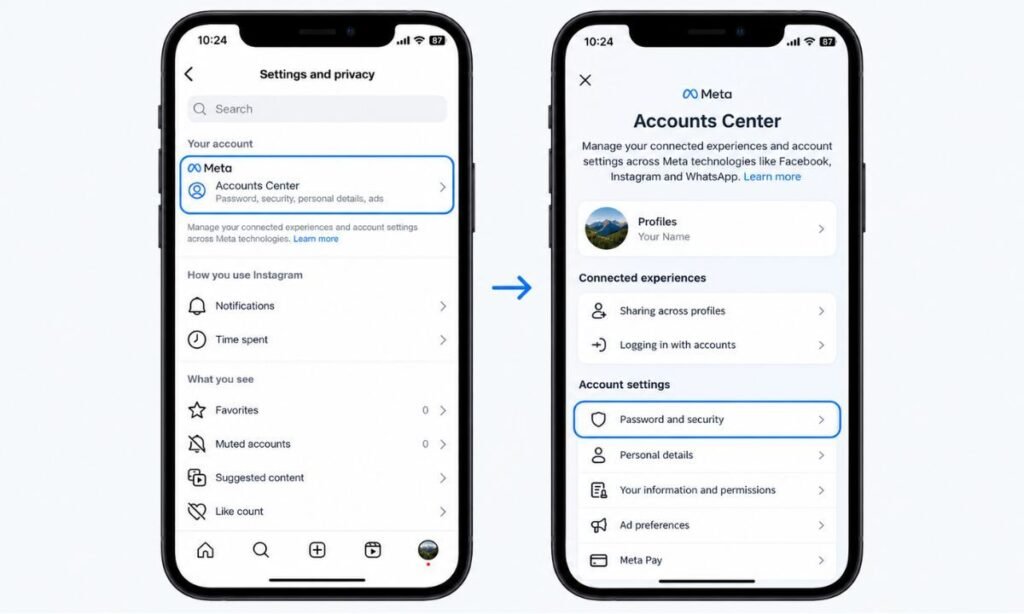
Meta merged account management for Facebook and Instagram into a single hub a while back, called Accounts Center — so if you’ve tried following an older guide and couldn’t find the setting it describes, that’s why. Here’s the current process, plus the separate steps if what you actually need is connecting a business Page rather than your personal accounts.
Quick answer: On Instagram, go to Settings > Accounts Center > Add Facebook account, then log in and confirm. This links your personal accounts for shared settings and cross-posting. Linking a Facebook Page to a Business or Creator Instagram account is a separate process, covered below.
Table of Contents
- Why Link Facebook and Instagram?
- Before You Start
- How to Link Your Personal Accounts
- How to Link a Facebook Page to a Business/Creator Account
- How to Unlink Facebook and Instagram
- FAQs
Why Link Facebook and Instagram?
Linking the two isn’t required to use either app, but it unlocks a few genuinely useful things:
- Cross-posting — share a post to both platforms at once instead of uploading twice.
- Coordinated ads — if you run ads for a business, linked accounts let campaigns run across both platforms from one place.
- One login across Meta apps — sign in once, and it carries across Facebook, Instagram, and Messenger.
- Easier discovery — linking can surface your Instagram to Facebook friends who don’t already follow you there.
Before You Start
One thing worth knowing before you link anything: if your Instagram account is private, content you actively choose to cross-post to Facebook still becomes visible there according to whatever your Facebook privacy settings allow — linking doesn’t override your Instagram privacy for people browsing Instagram itself, but anything you specifically share over to Facebook follows Facebook’s audience rules, not Instagram’s. If you’re linking mainly for login convenience and don’t plan to cross-post, this isn’t something you need to worry about.
How to Link Your Personal Accounts
This is the process for linking your own Facebook profile and Instagram account — not a business Page, which works differently and is covered in the next section.
- Open the Instagram app and go to your profile.
- Tap the menu icon (☰) in the top right, then tap Settings.
- Under Meta, tap Accounts Center.
- Tap Add Facebook account (or Set up Accounts Center if this is your first time in here).
- Log in to the Facebook account you want to link, then tap Continue as [your name].
- Choose what you’d like to sync — profile photo, name, and a few other details are optional — then tap Continue to finish.
Once linked, both accounts appear together under Accounts Center any time you want to review or change shared settings.
How to Link a Facebook Page to a Business/Creator Account
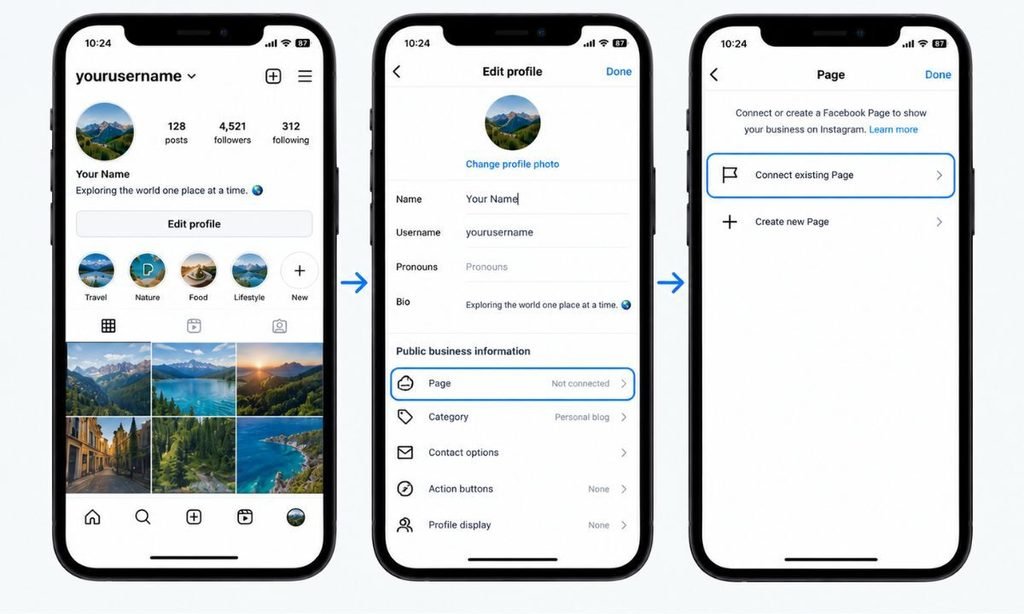
If what you actually want is connecting an Instagram Business or Creator account to a Facebook Page — for running ads, using professional insights, or managing both from Meta Business Suite — this is a different process from the personal account linking above.
Requirements first: your Instagram account needs to be set to Business or Creator (switchable for free from Instagram’s settings if it isn’t already), and you need admin access to the Facebook Page you’re connecting to.
- Open Instagram and go to your profile, then tap Edit Profile.
- Under Public business information, tap Page.
- Choose Connect an existing Page, then select the Page from the list (or create a new one if you don’t have one yet).
- Tap Done to finish — your Instagram account is now connected to that Facebook Page.
This can also be done from the Facebook Page’s own Settings under Linked accounts, or through Meta Business Suite if you manage multiple accounts from one dashboard — Flockler’s walkthrough covers all three routes in more detail if you’d like to compare them.
How to Unlink Facebook and Instagram
If you’ve linked accounts and want to undo it, the process mirrors how you linked them:
- Go to Settings > Accounts Center.
- Tap Accounts & Profiles, then tap the entry showing your linked accounts.
- Tap the Facebook account you want to remove.
- Tap Remove Account, then confirm.
Unlinking doesn’t delete either account — it just separates the shared settings and stops any cross-posting connection between them.
FAQs
How do I link my Facebook and Instagram accounts?
On Instagram, go to Settings > Accounts Center > Add Facebook account, log in, and confirm. This is the current method — older guides describing a “Linked Accounts” toggle are referring to a setting Meta has since replaced with Accounts Center.
What’s the difference between linking accounts and connecting a Facebook Page?
Linking personal accounts (via Accounts Center) lets you share a login and cross-post between your own profiles. Connecting a Facebook Page is a separate, business-focused process that requires a Business or Creator Instagram account and gives you access to ads and professional tools.
Will linking make my private Instagram posts public?
No — linking itself doesn’t change your Instagram privacy settings. Only content you actively choose to cross-post to Facebook becomes visible there, under Facebook’s own audience settings.
Can I unlink Facebook and Instagram later?
Yes, at any time. Go to Settings > Accounts Center > Accounts & Profiles, select the linked account, and tap Remove Account. Neither account gets deleted in the process.
Do I need a Business account to link Facebook and Instagram?
No — linking your personal accounts through Accounts Center works with a standard personal Instagram account. A Business or Creator account is only required for connecting to a Facebook Page specifically.
Want to tidy up a few other Instagram settings while you’re in there? Check out why your Instagram messages might be turning purple or what those “you might know” suggestions are actually based on.